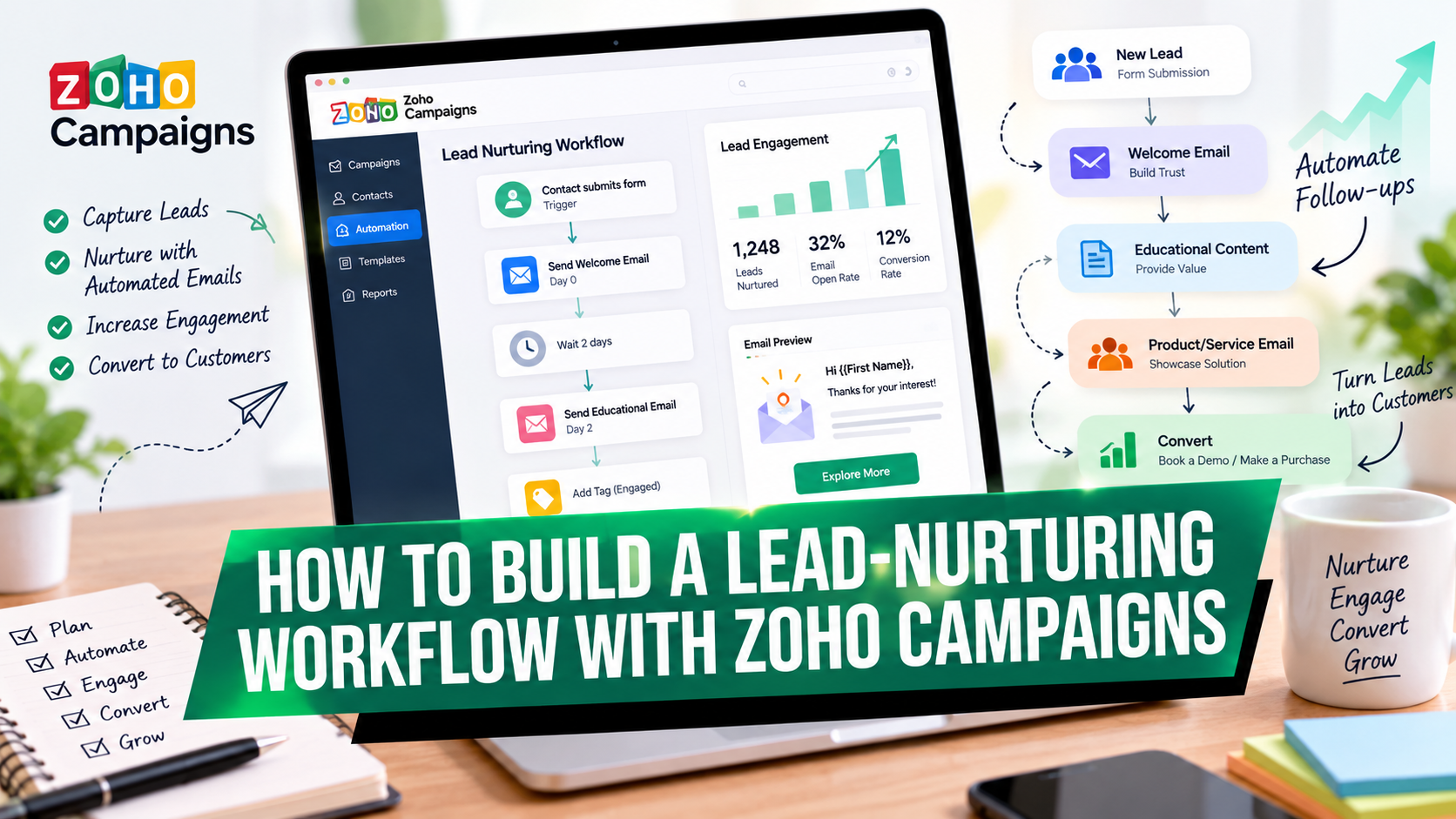
Generating leads is only the first step in successful digital marketing. The real challenge is turning those leads into engaged prospects who are ready to take action.
Imagine running a Google Ads or Meta Ads campaign that generates hundreds of leads every month. Some prospects are ready to buy, while others are still researching their options. If you send the same promotional email to everyone, you may lose opportunities to educate, engage, and convert those prospects.
This is where lead nurturing automation becomes essential.
With Zoho Campaigns, you can create automated workflows that send relevant emails based on a contact’s behavior, engagement, and position in the customer journey. Instead of manually following up with every lead, you can build a structured communication process that educates prospects, builds trust, and guides them toward conversion.
In this guide, you’ll learn how to build a lead-nurturing workflow with Zoho Campaigns, create an automated email sequence, segment leads, identify interested prospects, and measure campaign performance.
Ready to streamline your email marketing? Explore Zoho Campaigns here to evaluate its automation capabilities for your business.
What Is a Lead-Nurturing Workflow?
A lead-nurturing workflow is an automated marketing process that sends a sequence of relevant messages to prospects over time, helping them understand your product or service and move toward a purchase decision.
The workflow can start when someone submits a form, joins a mailing list, clicks a campaign link, enters a segment, or meets another supported trigger condition.
For example, a person who downloads a digital marketing guide could receive:
- An immediate email delivering the guide.
- An educational email explaining a related challenge.
- A case study demonstrating a possible solution.
- A product or service introduction.
- A relevant call to action inviting the prospect to book a consultation.
Zoho Campaigns supports workflow triggers, conditions, waiting periods, email actions, contact management actions, and other automation components that help you create these journeys. Its workflow functionality can also support engagement-based branching and lead qualification. See the official Zoho Campaigns workflow guide.
Why Is Lead-Nurturing Automation Important?
Lead nurturing helps businesses maintain relevant communication with prospects who aren’t ready to purchase immediately.
1. Improve lead engagement
Not every lead will convert after the first interaction. Educational emails help prospects understand their challenges and discover how your business can help.
2. Reduce manual follow-up
Automated workflows can send planned messages when contacts meet defined conditions. Your team spends less time scheduling repetitive emails and more time working on strategy and qualified opportunities.
3. Personalize the customer journey
You can use contact information, tags, and engagement conditions to create different paths for different audience segments.
For example, a prospect who clicks a pricing link may receive a more product-focused follow-up, while someone who doesn’t engage may receive additional educational content.
4. Identify sales-ready leads
Engagement signals can help you prioritize prospects who demonstrate interest. Depending on your workflow and integrations, you can update lead scores, assign tags, or push relevant information into Zoho CRM for sales follow-up.
5. Create a more consistent marketing process
A well-designed workflow ensures that eligible prospects receive planned communications without relying entirely on manual reminders.
For agencies, SaaS businesses, educational companies, and B2B service providers, this can make lead nurturing easier to manage as campaign volume grows.
What Do You Need Before Building a Workflow?
Before setting up your automation, prepare the following:
- A Zoho Campaigns account: Access the platform through this Zoho Campaigns affiliate link.
- A defined target audience: Identify the leads you want to nurture.
- A lead source: Decide whether contacts will enter through a signup form, mailing list, or another supported trigger.
- A clear conversion goal: Examples include booking a demo, requesting a consultation, or purchasing a product.
- An email sequence: Prepare educational, trust-building, and conversion-focused messages.
- Contact segmentation: Decide how you will group leads based on interests, source, behavior, or lifecycle stage.
- Compliance requirements: Ensure that your contact collection, email content, and unsubscribe processes meet applicable requirements.
It also helps to define what a qualified lead means for your business before building the workflow.
For instance, a B2B agency might consider a prospect qualified when they have expressed interest in a service, visited a pricing page, and requested a consultation. These are illustrative criteria; your actual qualification rules should reflect your sales process.
How to Build a Lead-Nurturing Workflow With Zoho Campaigns
Follow these steps to create your first automated lead-nurturing workflow.
Step 1: Sign in to Zoho Campaigns
Open Zoho Campaigns and sign in to your account.
In the current Zoho Campaigns 3.0 interface, Workflows is available in the left navigation panel. Select it to access your workflow dashboard.
Depending on your account interface, older documentation may refer to the navigation as Automation → Workflows.
If you’re new to the platform, explore Zoho Campaigns here before designing your lead-nurturing process.
Step 2: Create a new workflow
From the Workflows section, select Create Workflow or + Create New, depending on the interface displayed in your account.
Zoho Campaigns provides workflow templates for different marketing scenarios, along with options for building custom workflows. You can use a nurture or follow-up template if it suits your needs, or create a workflow from scratch.
Give the workflow a descriptive name, such as:
B2B Lead Nurturing – Website Enquiries
A clear naming convention makes it easier to manage multiple automations for different lead sources, products, campaigns, and audience segments.
For current setup instructions, refer to the official Zoho Campaigns workflow documentation.
Step 3: Choose the right workflow trigger
A trigger defines when a contact enters the workflow.
Zoho Campaigns supports several trigger types, including Form Submission, List Entry, Email Action, Field Update, Tag Assigned, and Enter a Segment. The appropriate choice depends on how you collect and manage leads.
Here are three useful options.
Option A: Form Submission
Use this trigger when someone submits a lead-generation form.
Example: A prospect submits a form to download your digital marketing checklist. The workflow begins and sends the requested resource.
Option B: List Entry
Use this trigger when a contact enters a specific mailing list.
Example: Leads generated through a webinar registration campaign are added to a dedicated list and enter the nurture workflow.
Option C: Enter a Segment
Use this trigger when you want contacts to enter a workflow after meeting defined segment criteria.
Example: Prospects who meet your criteria for a high-intent audience enter a product-focused nurture journey.
Select the trigger that matches your actual lead collection process. Configure the relevant form, list, or segment and review whether existing contacts are eligible to enter the workflow.
You can find more details in the Zoho Campaigns trigger documentation.
Step 4: Design your lead-nurturing email sequence
Before adding email actions, map out the messages you want to send and the purpose of each one.
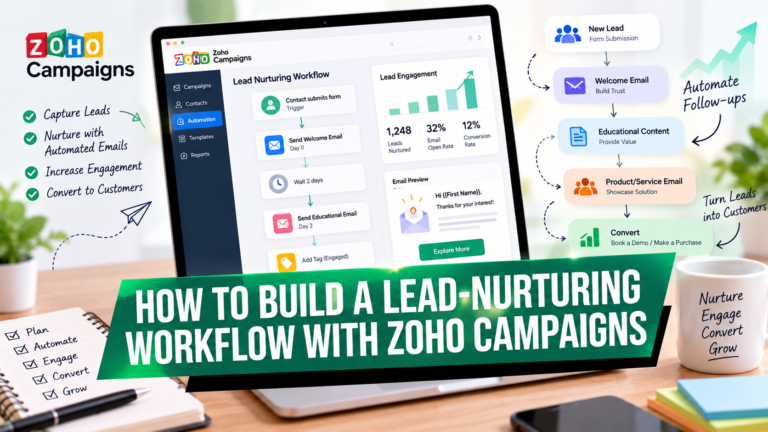
A practical five-email sequence might look like this:
| Timing | Objective | |
|---|---|---|
| Immediately | Deliver the requested resource | Confirm the action and provide value |
| Day 2 | Explain a common challenge | Educate the prospect |
| Day 4 | Share a case study or practical example | Build trust |
| Day 7 | Introduce your solution | Connect the problem to your offer |
| Day 10 | Invite the prospect to take the next step | Encourage conversion |
These timings are examples, not universal best practices. Adjust the sequence according to your sales cycle, product complexity, and audience preferences.
For a high-consideration B2B service, you might allow more time between messages. For a short promotional campaign, a more compact sequence could be appropriate.
Step 5: Add Send Email and Wait Time actions
Once your trigger is configured, build the workflow by adding the relevant actions.
In the workflow builder, use the Send Email action to deliver each message. Add a Wait Time action between emails to control the timing of subsequent communications.
For example:
Form Submission → Send Email 1 → Wait 2 days → Send Email 2 → Wait 2 days → Send Email 3
Continue adding actions until you’ve created the desired sequence.
Zoho Campaigns supports waiting periods measured in hours or days. Depending on the workflow configuration, you can also control when contacts resume their activity.
Remember to configure every component and connect the workflow paths correctly before activation.
Step 6: Create the email content
For each Send Email action, configure the email message, including the subject line, preheader, sender details, and content.
Your emails should provide value before repeatedly asking prospects to buy.
Here are three ready-to-adapt examples.
Email 1: Deliver value
Subject: Here’s your requested guide
Hi [First Name],
Thanks for your interest in [Brand Name].
As promised, here’s your resource on [Topic].
Inside, you’ll find practical insights to help you understand [specific challenge] and identify opportunities to improve your current approach.
Start with the section most relevant to your goals, and feel free to reply if you have any questions.
[Access Your Guide]
Best regards,
The [Brand Name] Team
Email 2: Educate the prospect
Subject: One common challenge with [Topic]
Hi [First Name],
Many businesses struggle with [specific problem]. One reason is that they focus on [common approach] without addressing [underlying challenge].
A more effective approach is to:
- Identify the biggest obstacle.
- Focus on the highest-impact improvement.
- Measure the outcome before scaling.
At [Brand Name], we help businesses explore practical ways to address these challenges.
[Read Our Related Guide]
Best regards,
The [Brand Name] Team
Email 3: Introduce your solution
Subject: Could [Your Solution] help with [Business Goal]?
Hi [First Name],
You’ve explored some ways to improve [Topic]. The next step is to determine which approach makes sense for your business.
Our [Product or Service] helps [Target Audience] work toward [Relevant Outcome] through [Key Benefit].
If you’re evaluating possible solutions, we’d be happy to help you understand whether it’s a good fit.
[Book a Consultation]
Best regards,
The [Brand Name] Team
Replace all placeholders with your actual information. Use the personalization fields available in the editor and test the emails before activating the workflow.
Step 7: Segment leads based on engagement
Sending the same sequence to every lead isn’t always the best approach.
Use workflow conditions to create different paths based on contact attributes or behavior.
For example, after sending an educational email, you could check whether a contact clicked a particular link.
If the contact clicked the link:
- Send a more detailed product or service email.
- Assign an appropriate interest tag.
- Increase the lead score if your scoring rules support it.
- Consider routing the contact for sales follow-up.
If the contact did not click the link:
- Send another educational resource.
- Continue with a lighter-touch sequence.
- Review whether the subject line and content are relevant.
Zoho Campaigns provides condition components, including email-activity checks, to support behavior-based workflows. The precise configuration depends on the workflow components available in your account.
One important consideration: an email open is not always a reliable indication of genuine interest because privacy features and automated image loading can affect open tracking. Use meaningful actions, such as clicks, form submissions, and consultation requests, alongside other qualification criteria.
Step 8: Score and qualify leads
Lead scoring helps prioritize contacts according to their attributes and engagement.
For example, your internal scoring model could assign illustrative points as follows:
| Action | Example score |
|---|---|
| Downloads a resource | +5 |
| Clicks a relevant product link | +10 |
| Visits a pricing page through tracked activity | +10 |
| Requests a consultation | +25 |
These values are examples only. They aren’t Zoho defaults, and you should calibrate your scoring model using actual conversion data.
Where supported by your workflow and account configuration, use scoring actions to update contact scores and tags. You can then use those signals to determine the next step in the journey.
For example, a prospect who meets your qualification threshold could be tagged as High Intent or passed to Zoho CRM for further sales follow-up.
For a B2B team, the objective is to help sales representatives prioritize leads that are more likely to become genuine opportunities—not simply contacts who have opened several emails.
Step 9: Connect your workflow to Zoho CRM when needed
Marketing automation becomes more useful when marketing and sales teams work from consistent lead information.
If your business uses Zoho CRM, evaluate whether your workflow should push contact data to CRM or create a follow-up task when a lead meets your qualification criteria.
For example:
Lead clicks a pricing link → Meets qualification criteria → Contact data is pushed to CRM → Sales follow-up task is created
Zoho Campaigns documents CRM-related workflow actions, including pushing data to Zoho CRM and creating tasks. The availability of specific actions and the configuration required depend on your account and integration setup.
Before implementing this process, verify that your CRM field mappings, duplicate-handling rules, and sales ownership settings are correct.
Step 10: Test and activate the workflow
Before activating the workflow, review the complete sequence.
Check the following:
- The correct form, list, or segment triggers the workflow.
- Every email has the correct subject line, content, and sender details.
- Wait times are configured correctly.
- Conditions route contacts to the intended paths.
- All workflow components and end nodes are connected.
- Personalization fields render correctly.
- CTA links and tracking parameters work.
- Contact eligibility, consent, and unsubscribe requirements are respected.
- CRM actions, if used, have been configured and tested.
Zoho Campaigns requires the workflow components to be configured and connected, and email content to complete the applicable review process before activation. Once the workflow is ready, use the Activate control in the workflow builder.
After activation, monitor workflow execution and email delivery to confirm that contacts are progressing as expected.
A Practical Lead-Nurturing Workflow Example for a Digital Marketing Agency
Let’s put the process into a real-world scenario.
Suppose your agency runs a Meta Ads campaign offering a free lead-generation checklist. Prospects submit a landing-page form, and your goal is to turn suitable leads into consultation bookings.
Your workflow could look like this:
Step 1: Lead capture
A prospect submits the checklist form and enters the relevant mailing list or form-triggered workflow.
Step 2: Immediate delivery
Send the requested checklist and explain how to use it.
Step 3: Educational follow-up
After two days, send a practical email explaining how to improve lead quality or reduce wasted advertising spend.
Step 4: Engagement check
Use an appropriate email-activity condition to identify contacts who click a relevant resource or offer.
Step 5: Personalized follow-up
Send engaged contacts a case study or an introduction to your agency’s services. Continue providing educational content to other contacts.
Step 6: Qualification
Apply your qualification criteria using relevant contact information and engagement signals. Where configured, update a score or tag.
Step 7: Sales handoff
For leads who meet your criteria, push the appropriate data into Zoho CRM or create a follow-up task if your integration supports it.
Step 8: Performance review
Review email engagement, consultation bookings, qualified leads, and downstream sales outcomes.
This structure creates a connection between paid acquisition and lead nurturing, helping you evaluate campaign performance beyond the initial cost per lead.
To implement a similar process, explore Zoho Campaigns through this link and review which workflow and integration capabilities fit your agency’s requirements.
How to Measure Lead-Nurturing Workflow Performance
A lead-nurturing workflow should be evaluated against its business objective, not just the number of emails sent.
Track these metrics:
| Metric | What it measures |
|---|---|
| Email delivery rate | Whether emails are successfully delivered |
| Click-through rate | Whether recipients click relevant links |
| Unsubscribe rate | Whether contacts opt out of communications |
| Lead qualification rate | The proportion of leads meeting your qualification criteria |
| Consultation or demo bookings | The number of prospects taking a meaningful sales action |
| Lead-to-customer conversion rate | How many nurtured leads eventually become customers |
| Revenue attributed to nurtured leads | The revenue associated with the nurture journey under your attribution model |
Where possible, compare nurtured leads with an appropriate baseline or control group. This helps you understand whether the workflow is contributing to better outcomes rather than merely sending messages to people who might have converted anyway.
Use your findings to refine the content, timing, segmentation, and qualification rules.
Common Mistakes to Avoid in Lead-Nurturing Automation
Sending too many promotional emails: Lead nurturing should educate and build trust, not repeatedly pressure prospects to buy.
Using the same workflow for every audience: Different lead sources and levels of intent may require different messaging.
Ignoring workflow entry conditions: Incorrect triggers or re-entry settings can result in contacts receiving inappropriate or duplicate communications.
Treating opens as proof of purchase intent: Use multiple signals and prioritize meaningful actions over a single engagement metric.
Failing to connect marketing and sales: If qualified leads aren’t routed or followed up consistently, opportunities may be lost even when email engagement is strong.
Forgetting to test: A broken link, incorrect field mapping, or disconnected workflow component can undermine the entire automation.
Neglecting consent and unsubscribe preferences: Maintain appropriate permissions and honor applicable communication preferences and legal requirements.
Frequently Asked Questions
1. How do I create a lead-nurturing workflow in Zoho Campaigns?
Open Workflows in Zoho Campaigns, create a new workflow or select a suitable nurture template, configure a trigger, add Send Email and Wait Time actions, and create the email sequence. Add conditions where needed, test the workflow, and activate it.
2. What is the best trigger for a lead-nurturing workflow?
The best trigger depends on your lead source. Form Submission works well for new enquiries and downloads, List Entry suits mailing-list-based nurturing, and Enter a Segment is useful when contacts should enter based on defined criteria.
3. Can Zoho Campaigns send multiple nurture emails automatically?
Yes. You can configure multiple Send Email actions and use Wait Time components to schedule follow-up messages over time. Conditions can help route contacts through different paths based on their attributes or engagement.
4. Can I create different email sequences for different leads?
Yes. You can use supported conditions, contact attributes, tags, and segments to build different workflow paths. For example, highly engaged prospects can receive product-focused messages, while other contacts receive additional educational content.
5. Can Zoho Campaigns identify sales-ready leads?
Zoho Campaigns supports workflow components for scoring and managing contacts, as well as CRM-related actions. You can define qualification criteria and use supported actions or integrations to help identify and route promising leads.
6. Can I connect Zoho Campaigns with Zoho CRM?
Zoho Campaigns supports CRM-related workflow actions, including pushing data to Zoho CRM and creating tasks. Check your account’s integration configuration and available features before implementing a specific workflow.
7. How many emails should a lead-nurturing sequence contain?
There is no universal number. A short sequence of three to five emails can be a useful starting point for many campaigns, but the right length depends on the buying cycle, product complexity, and audience engagement. Measure results and adjust accordingly.
8. How do I know whether my lead-nurturing workflow is working?
Monitor delivery, clicks, unsubscribes, lead qualification, bookings, and conversions. Where possible, measure the contribution of nurtured leads to revenue and compare results with an appropriate baseline.
9. Is Zoho Campaigns suitable for agencies and B2B businesses?
Zoho Campaigns provides workflow functionality for automated email communication, lead nurturing, engagement-based branching, and contact management. It may be useful for agencies and B2B businesses, depending on their requirements, integrations, account configuration, and budget.
Explore Zoho Campaigns here to evaluate whether its capabilities suit your marketing workflow.
Conclusion
Building a lead-nurturing workflow with Zoho Campaigns helps you move beyond one-time email campaigns and create a more structured process for engaging prospects.
By combining the right trigger, a useful email sequence, appropriate waiting periods, behavior-based conditions, and clear qualification criteria, you can deliver relevant messages throughout the customer journey.
Start with a single audience segment and one defined conversion goal. Test your workflow carefully, monitor how contacts respond, and improve the sequence using actual performance data.
As your process matures, consider adding lead scoring, segmentation, and Zoho CRM integration to strengthen the connection between marketing engagement and sales follow-up.
The objective is simple: turn more of your existing leads into meaningful sales opportunities through timely, relevant, and measurable communication.
Ready to build your first workflow?
Explore Zoho Campaigns and evaluate how its automation features can support your lead-nurturing strategy.
Affiliate disclosure: This article contains an affiliate link to Zoho Campaigns. If you sign up or make a qualifying purchase through this link, I may earn a commission at no additional cost to you. Please evaluate the platform based on your own business needs before making a purchase.
About the Author